SMS and Conversations
Send and receive SMS from tracking numbers, review media messages, and manage unified call plus text timelines.
Open Conversations
Go to Conversations to view all message threads for your business. Threads are grouped by contact number and sorted by latest activity.
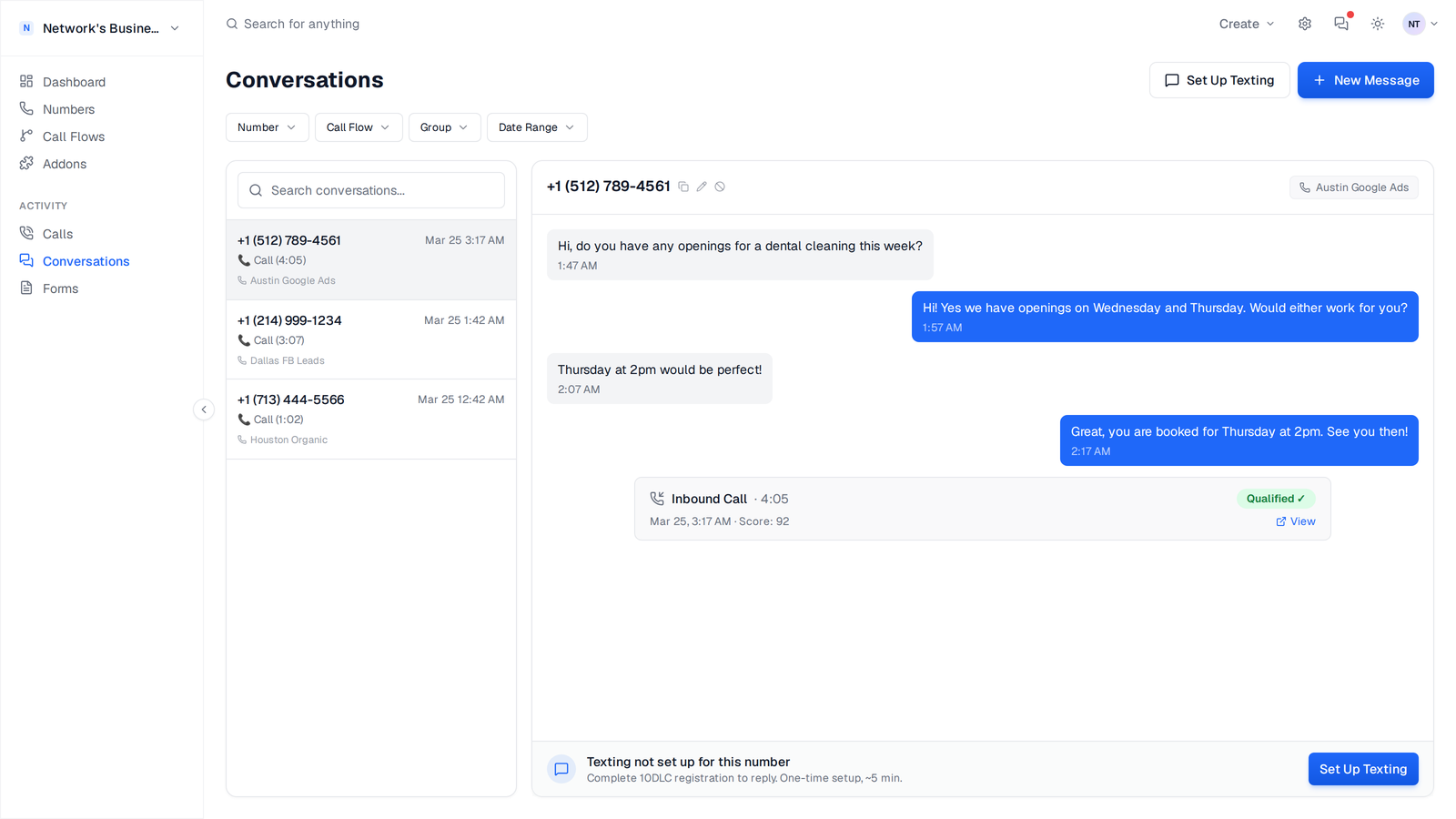
What appears in a thread
Each thread timeline merges call and text activity for the same contact number so your team can review context in one place.
- •Inbound and outbound SMS
- •Call events (for example answered, missed, voicemail, failed)
- •Call recording links when a recording exists
- •MMS attachments (image/audio/video/file) inline in the conversation
Send a new message
1. Open Conversations.
2. Click New Message.
3. Select a From tracking number from your account.
4. Enter the recipient number in E.164 format (for example +18135551234).
5. Type your message and click Send Message.
If your available balance is below the send cost, CallScaler blocks outbound sends. Add funds in Settings → Billing and retry.
Search and filter threads
Use the thread search and filters in Conversations to narrow the queue quickly:
Use clear number names (for example, "Tampa PPC" or "Main Intake") so filtered thread lists are easier to scan during busy hours.
- •Search by contact phone number or saved contact name
- •Filter by tracking number
- •Filter by call flow
- •Filter by date range
SMS-enabled number requirements
CallScaler only lets you send outbound SMS from numbers that belong to your business, are SMS-enabled, and have carrier approval. If a number is not ready, you will see setup guidance instead of a silent send failure.
10DLC setup for US local numbers
For US A2P messaging, register in Messaging Campaigns:
1. Register a brand (the business carriers verify).
2. Submit a campaign with sample messages, the automatic STOP and HELP replies, and how customers opt in.
3. Assign numbers to the approved campaign.
Only owner and admin roles can submit brands or campaigns and assign numbers. See Messaging Campaigns and 10DLC Registration for full instructions.
Canadian local numbers and receive-only numbers
Canadian local tracking numbers are SMS-enabled at purchase and do not require US-style 10DLC registration before use. If you only need to receive texts on a US number, use Receive only on the Phone Numbers tab of Messaging Campaigns: support switches the numbers on without a brand or campaign, and inbound texts show in Conversations. Receive-only numbers cannot send.
Toll-free numbers still follow toll-free messaging verification rules. If a toll-free number is pending, outbound messages may not deliver until approval completes.
Billing for messaging
SMS usage is charged per message segment based on your account's current rates. Check live rates in Settings → Billing.
Related
On this page